
Imaging & Processing
Imaging that reports back to the case.
Image with CASEY’s own built-in imager, launch X-Ways Forensics from the exhibit, or drive an OpenText Tableau TX1 or TX2. Whichever you choose, the results come back into the exhibit record, ready to be checked.
Your choice of imager
Three ways to image, one record.
Use the method that suits the exhibit and your lab. Each one starts from the exhibit and ends with the acquisition recorded against it.
CASEY Imager
CASEY’s own integrated imager creates E01 images of disks and partitions, with live progress. Acquisition and verification hashes and timings are filled in automatically.
X-Ways Forensics
Launched from the exhibit to image the selected disk to an E01 named after the exhibit. The X-Ways imaging log can be imported as an Action.
OpenText Tableau TX1 / TX2
Jobs started from the exhibit and tracked by the CASEY server, with the device’s forensic log captured the moment a run finishes.
Hardware imagers
TX1 and TX2 jobs that carry on without you.
- 01
Start from the exhibit
Pick a registered TX1/TX2 from the asset register and see at a glance whether it is idle, busy or unreachable. CASEY registers the job before queuing it on the device.
- 02
Tracked by the server
The CASEY API reads progress from the device, so closing the exhibit form, or CASEY itself, loses nothing.
- 03
Log captured on completion
The imager’s forensic log is stored against the job as soon as it finishes, even if nobody is signed in.
- 04
Into the record
“Save log to Action” and “Fill imaging details” carry the log, machine, method, hashes, timings and size into the exhibit for the examiner to check and save.
Investigate · Processing
Your jobs, on whichever machine you sign in to.
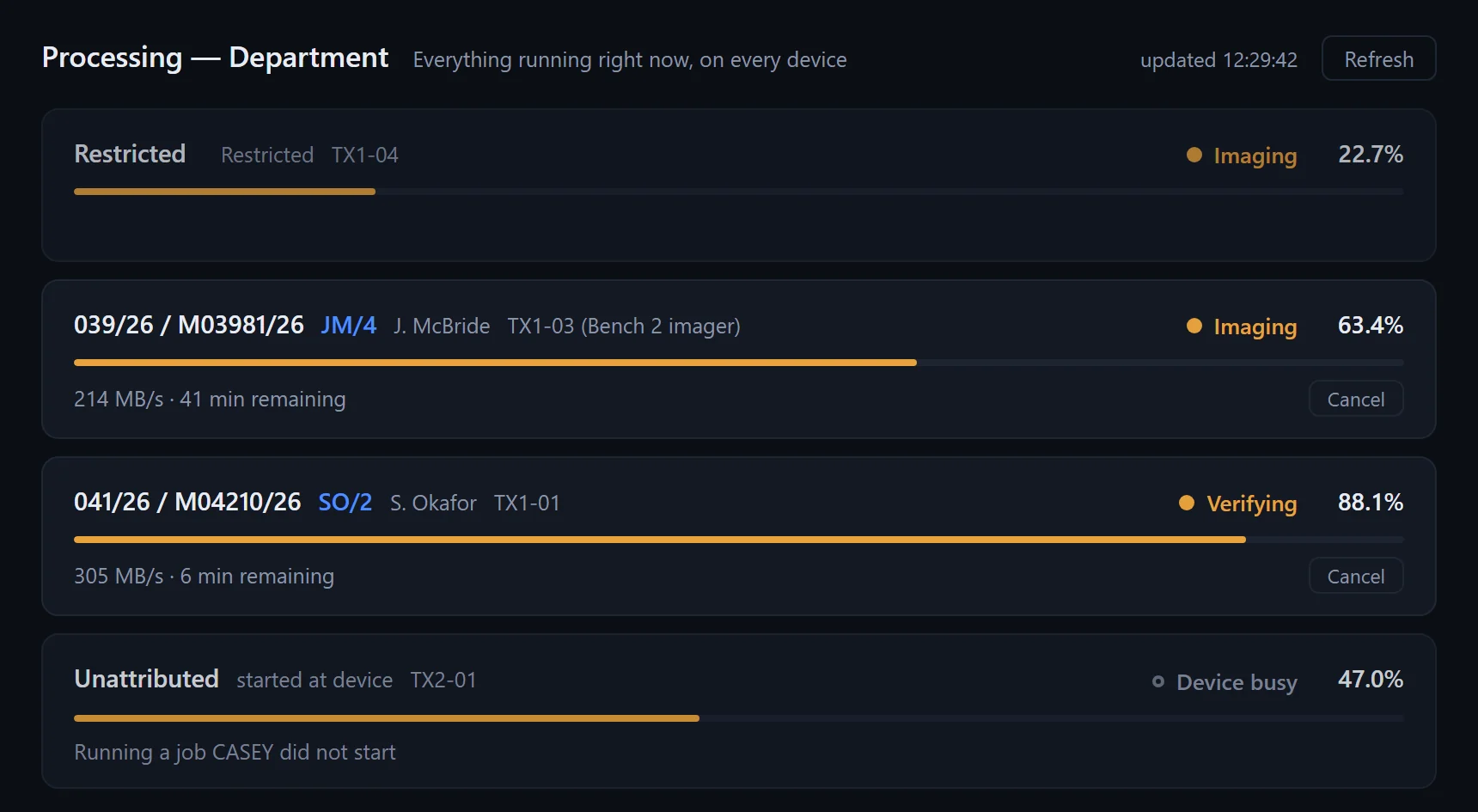
Examiners see their own running and queued TX1/TX2 and CASEY Imager jobs, with device, stage, percentage, rate and time remaining, and can open the case from the job’s reference.
- An animated marker in the exhibits tree shows which items are being imaged, whoever started the run
- Each exhibit’s Imaging tab answers “is this being imaged right now?” with live progress or the outcome and hash of the last run
- The write blocker is never pre-selected. It stays blank until someone chooses it.
Manage · Processing
The whole lab’s capacity at a glance.
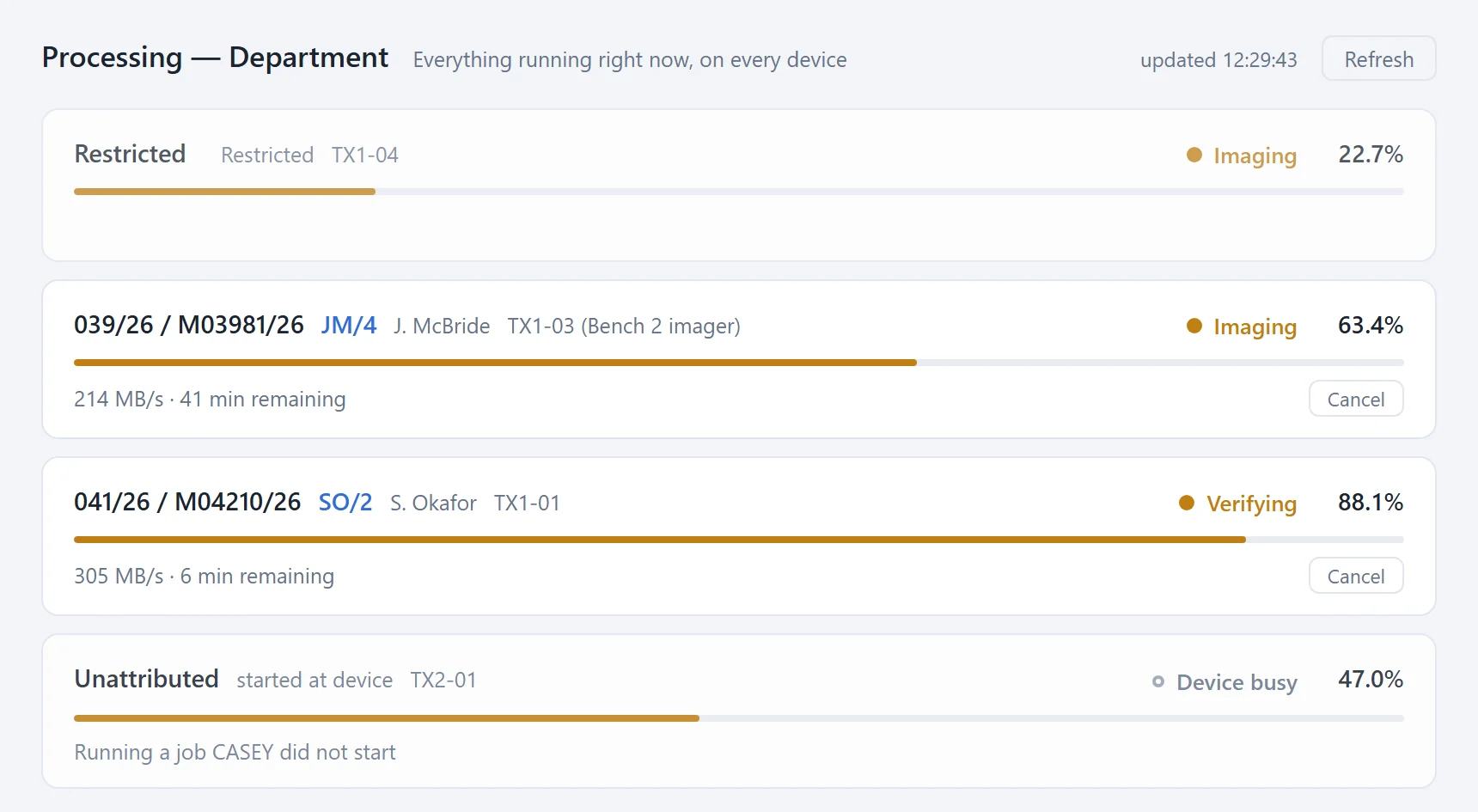
Managers see every job running across the department and the health of every device.
Restricted stays restricted
Jobs on restricted cases appear as progress only, so the device is not mistaken for free and nothing about the case is revealed.
Front-panel jobs included
Runs started at the device itself are shown as unattributed activity, so an imager is never shown as available when it is busy.
Device health
Online, busy or unreachable with the reason, firmware, and a warning when a unit’s forensic-log slots are running low.
Trusted connections
Test connection runs from the CASEY server and pins the certificate each device presents. Credentials never travel over a channel the server does not trust.
Cancel with authority
Managers and the job’s owner can cancel a run straight from the Processing view. Nobody else can.
Every job in one view
CASEY Imager acquisitions sit beside TX1/TX2 jobs in the same view, with hashes stored on completion.
Acquisition record
Every image, fully described.
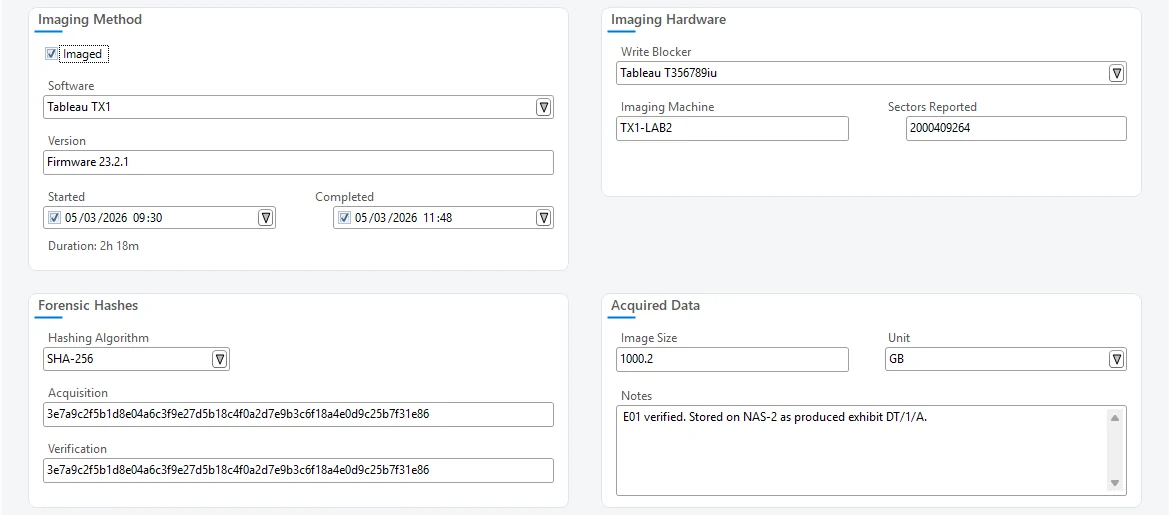
Whether it came from CASEY Imager, X-Ways, a TX1/TX2 or FTK Imager, the exhibit records the same facts in the same place.
- Software and firmware, write blocker and imaging machine
- Acquisition and verification hashes: MD5, SHA-1, SHA-256 or SHA-512
- Start, completion and duration, and the acquired size
- Partitions read from the image, with BitLocker detection
Want to see imaging in CASEY? Get in touch